| project name: | muses |
| project url: | https://github.com/nolliegray/muses |
| author: | nolliegray |
| description: | weighted generative sequencer |
| discussion url: | https://llllllll.co/t/muses/75854 |
| documentation url: | https://github.com/nolliegray/muses |
| tags: | sequencer generative looper midi grid crow nb |
Muses
A Weighted Generative Sequencer for Monome Norns
Current Version 1.0.0
Required: Monome Norns
Optional: Grid and Crow
Overview
Muses is named for the original three Boeotian Muses:
Aiode - Muse of Song
Melete - Muse of Practice
Mneme - Muse of Memory
These relate to the core functions of Muses:
1. Muses generates user-weighted notes, chords, and rhythms to create an improvisational song.
2. Muses can be your partner in practice, where you play along with another instrument or use it to generate interesting phrases to practice for yourself.
3. Muses can also lock a loop for each channel to serve as a memory for a portion of the generated sequence.
Muses consists of two channels of probabilistically weighted sequences that can run independently of one another, then be locked into a loop of up to 64 events. Once a loop is locked, the sequence continues to play that loop with control over start position, end position, direction, and the likelihood to improvise. A locked loop is not influenced by changes on the other pages outside of tempo and swing. Changes made to any probabilities will only be reflected once a loop is unlocked a the engine resumes determining the next event based on probability.
By default, Muses generates MIDI data, but can be connected to Crow for use with modular synthesizers, or use internal NB voices.
Controls
K1: Play/Pause (Long Hold)
K2: Channel Select
K3: Capture/Release Loop
K3: Reset (Long Hold)
E1: Navigate Pages
E2: Select Parameters
E3: Edit Parameter Value
Crow
IN 1: Clock
IN 2: Reset
OUT 1: Ch1 CV (Root)
OUT 2: Ch1 Gate
OUT 3: Ch2 CV (Root)
OUT 4: Ch2 Gate
Overview
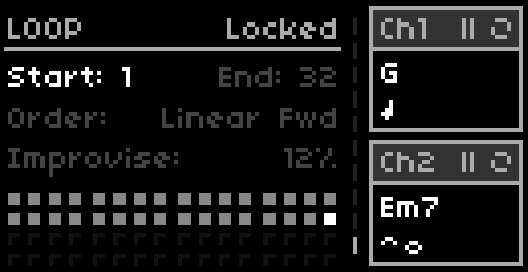
The overview section is located on the right side of the screen and displays what is happening on each channel and indicates which channel is actively being edited. It is always visible and shows the play status and the loop status. The overview section of the screen also shows the currently playing event by displaying the note or chord name, the rhythm icon(s), the type of ornamentation played, and if a bar line is enforced.
Pages
Norns screens can be navigated through 10 different pages using encoder 1. These pages allow different parameters to be set that influence the output of the sequencers. When editing a page, toggle between Ch1 or Ch2 (or both simultaneously) to edit parameters for that channel. Select the parameter to edit using encoder 2 and make the adjustment using encoder 3.
- KEY/SCALE
- CLOCK/BAR
- NOTE
- RHYTHM
- CHORD
- VOICING
- OCTAVE
- VELOCITY
- ORNAMENT
- LOOP
KEY/SCALE
The Key/Scale page lets you set the root note of the scale and what notes are in the scale. You can further modify a scale by adding or subtracting individual notes from the keyboard style interface using encoders 2 and 3.
CLOCK/BAR
The Clock/Bar page gives you global control over the tempo, which is shared by both channels. Clock division, swing, time signature, and bar enforce are all editable per channel. Bar enforce is a parameter that forces the notes to fit inside of the measure set by the time signature. It ranges from 0 (off) to 100% (always) and will also activate an accent velocity that is added to the note on the downbeat (or other beats depending on time signature).
NOTE
The Note page sets the probability for each chromatic note. If note is grayed out by the scale, it will not be selected as a root for the probability engine. The default weights are mapped to the engine's defaults for that particular scale. Some of the other pages' probabilities can affect notes in chords that may not be active.
RHYTHM
The Rhythm page sets the probability for note duration from 1/32 to whole. Notes can be further modified by setting the probability of a dotted note, a triplet, a rest, a tie, or notes arriving early (rush) or arriving late (drag). The rush and drag offset the timing by 30ms.
CHORD
The Chord page has settings for the global probability that the next event will be a chord instead of a note. Set Global to 0% for no chords or 100% to always generate a chord. Chords can be either triads or sevenths, major or minor, dominant, diminished, augmented, and other variations of where the 3rd, 5th, and 7th are placed in relation to the root.
VOICING
The Voicing page only affects a chord. It further lends probabilities to inversions, drop 2 or drop 4, adding a 6th, 8th or 9th, dropping the root, a shell voicing (no 5th), and a suspended 2nd or 4th.
OCTAVE
The Octave page sets the probability for each octave, where 0 is based off of MIDI note C60 or Middle C. The last two options on the Octave page allow for a note to be doubled either above or below, playing two octaves simultaneously (but only the root note if a chord).
VELOCITY
The Velocity page sets the probability for MIDI note velocity from ppp to fff.
ppp = 16, pp = 32, p = 48, mp = 64, mf = 80, f = 96, ff = 112, fff = 127
The last two probabilities allow for humanization to randomly increase or decrease the velocity between 1 and 10.
If Bar Enforce is on, the downbeat of the bar will have an additional velocity increase of 32 (adjustable in params).
ORNAMENT
The Ornament page has many functions to embellish the playing and override the notes and chords selected by the probability engine. The first option allows for the probability of hitting the sustain pedal for the duration of the event. Other options include tremolos, trills, grace notes, ghost notes, mordents, scale runs, arpeggiated chords, and event repeats.
LOOP
The Loop page is always recording the events for each channel independently. It remembers up to the last 64 events whether they are individual notes or chords at any rhythm duration. Don't think of it as a traditional step sequencer, as some events are shorter or longer, but still take up just one square on the grid. You can lock the selected channel(s) by hitting key 3. Holding key 3 will reset the loop to its start position.
Adjusting the start and end points allows you to select different areas of the locked loop for playback. These wrap around the grid, so the start could be a later point than the end. When first recording, the loop auto-grows up to 64 steps or until locked.
The locked sequencer can be played back in different orders:
Linear Forward (Start to End)
Linear Reverse (End to Start)
Pendulum (Back and Forth, Doesn't Repeat Ends)
Leap Forward (Jump Forward 2, Slide Back 1)
Leap Reverse (Jump Backward 2, Slide Forward 1)
Shift Forward (Play Forward 3, Play Backward 1)
Shift Reverse (Play Backward 3, Play Forward 1)
Random (Randomly Selects Event in Loop, Might Repeat)
The Improvise % control allows for some variation in the locked loop playback. Increasing the probability for improvisation increases the likelihood of adding an ornament or humanizing the velocity. All other aspects of the event are locked.
When the loop is unlocked, it begins to record new events into memory on the next step in a linear forward manner within the loop boundary. When a loop is locked again, it will play based on the order mode set. There are two ways to set the recording boundary to the full 64 events: Manually set the start to 1 and the end to 64, or set both positions to 1 to enable the auto-grow feature of the loop boundary.
The Loop has lots of interesting potential depending on if you are locking both channels or just one. Experiment with unlocking during parts of the loop or move the start and end points between loop locks to create different sections in the 64 event grid to save and return to different sequences.
Params
In the Params menu, set the following:
MIDI Device: Virtual
MIDI Out for Ch1: 1
MIDI Out for Ch2: 2
Bar Enforce Accent: 32
Crow
Crow Out 1: Ch1 CV (Root)
Crow Out 2: Ch1 Gate
Crow Out 3: Ch2 CV (Root)
Crow Out 4: Ch2 Gate
Any output can be set to CV, Gate, Velocity, Trigger, or Off for Ch1 or Ch2
NB Voices
Ch1 Voice
Ch2 Voice
Output can be set to installed NB Voices in Params
Presets
Muses saves all current changes to the native Norns pset slot 1 (called muses) automatically when closing the script. You can save as many psets as you like, but you will need to save them explicitly to a different slot. If you load a different pset than the slot 1, all changes will still be auto-saved to slot 1. A good practice is to use save slots as starting points and improvise from there.
Grid
While the grid is optional, it makes adjusting probabilities, navigating pages, and playing the locked looper much easier. The upper right side of the grid shows the 10 pages in two columns. The bottom four keys are play/pause, reset, channel select, and loop lock.
Depending on the page, the left 12 columns of the grid control various parameters and set the probabilities. If a probability is already set, pressing the grid key again will set the probability to zero.
On the Loop page, the grid allows for direct manipulation of the start and end points by pressing and holding the start point and then choosing an end point (even if it is earlier in the sequence). You can restart the auto-grow feature of the buffer by just selecting a start point of 1 and not setting an end point. The 10th column chooses the play order and the 12th column controls the probability of improvisation during a locked loop.
The grid stays visually in sync with the Norns screen, so it can be helpful to see what parameter you are editing by keeping the screen close by.